Filter datasets with conditions
You can use conditions to control the items that are included in a dataset. For example, you might want to display only orders created in the last 12 months on the homepage. Similarly, you might want to list only the orders created by the current customer on a Customer view.
You can add conditions to a dataset containing cases, tasks, or logs. You can also add conditions to a Filter dataset that is based on an existing dataset.
The conditions that you apply to the dataset control what is included in the dataset. Only items that match the filters are made available to any widgets, picklists, or activities that use the dataset. You can allow users to apply further filters to the data that is displayed by adding filter options to grid, tile, and template widgets.
To add a condition, open the Designer tab, click the condition icon on the toolbar and then select the condition to configure it.
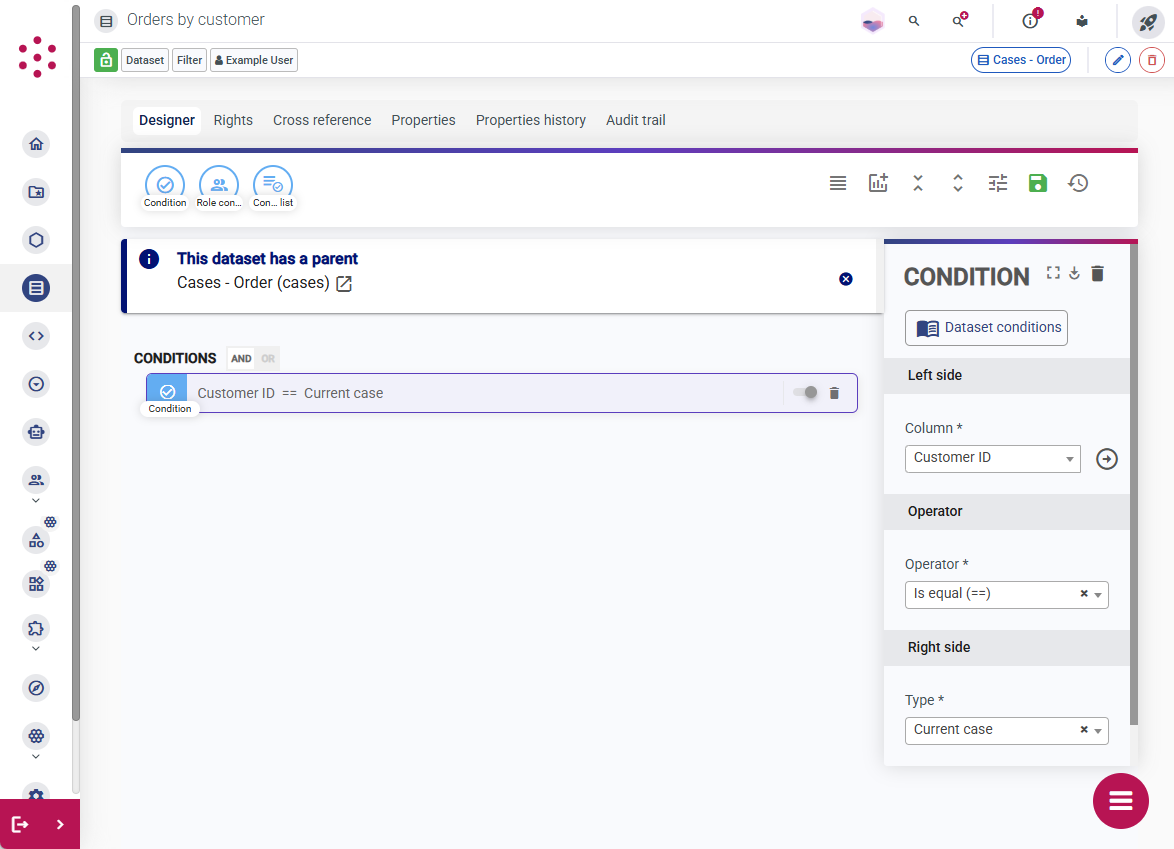
When you add conditions, you can compare a value from a column (containing metadata, case data, or other details) to:
- Column: The value of another column in the dataset. For example, you might only want to include tasks that were submitted after the task due date.
- Current case: The case ID of the current case. This is useful if you want to display a dataset in a view of a standard casetype (such as a
CustomerorEmployeeview) and display only items that relate to the case being viewed. For example, in a dataset containingOrdercases, you might compare a column containing the case ID of the relatedCustomercase to the current case. If you then use the dataset to populate a grid widget on theCustomerview, the dataset will only return theOrdercases with aCustomervalue that matches the case ID of the customer currently being viewed.
You can also use this option to restrict the items in a picklist based on the case being edited (using a form activity) or the parent case of the case being created (using a casetype activity). - Current case casedata/metadata: An attribute or piece of metadata that is not included in the dataset. This is useful if you do not want to add the column that contains the data to the dataset.
- Inline template: A value from a related case, a date, the user's session, or some other value from the application identified using an inline template.
- Value: A fixed value, such as a number or piece of text. For example, you might only want to include orders with a cost over a certain value.
The Operator field defines how the values are compared. For example, to check whether the two values being compared are the same as each other, select is equal. To check whether the value contained in the selected column includes at least some of the same data, select Contains. Some operators, such as Greater than and Less than are only valid when comparing numerical data.
By default, all conditions must be met for a case, task, or log to be included in a dataset. To require only one of several conditions to be satisfied for an item to be included in the dataset, change the Condition toggle from And to Or.
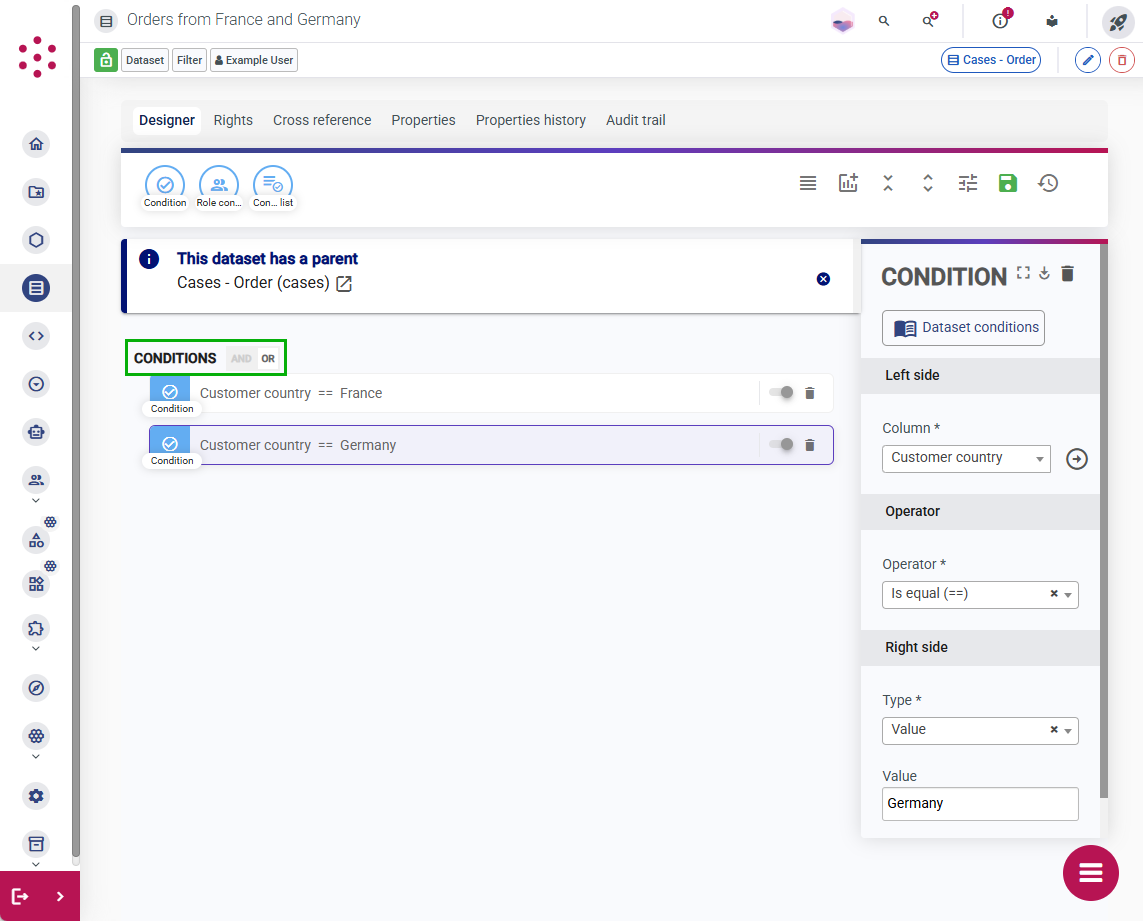
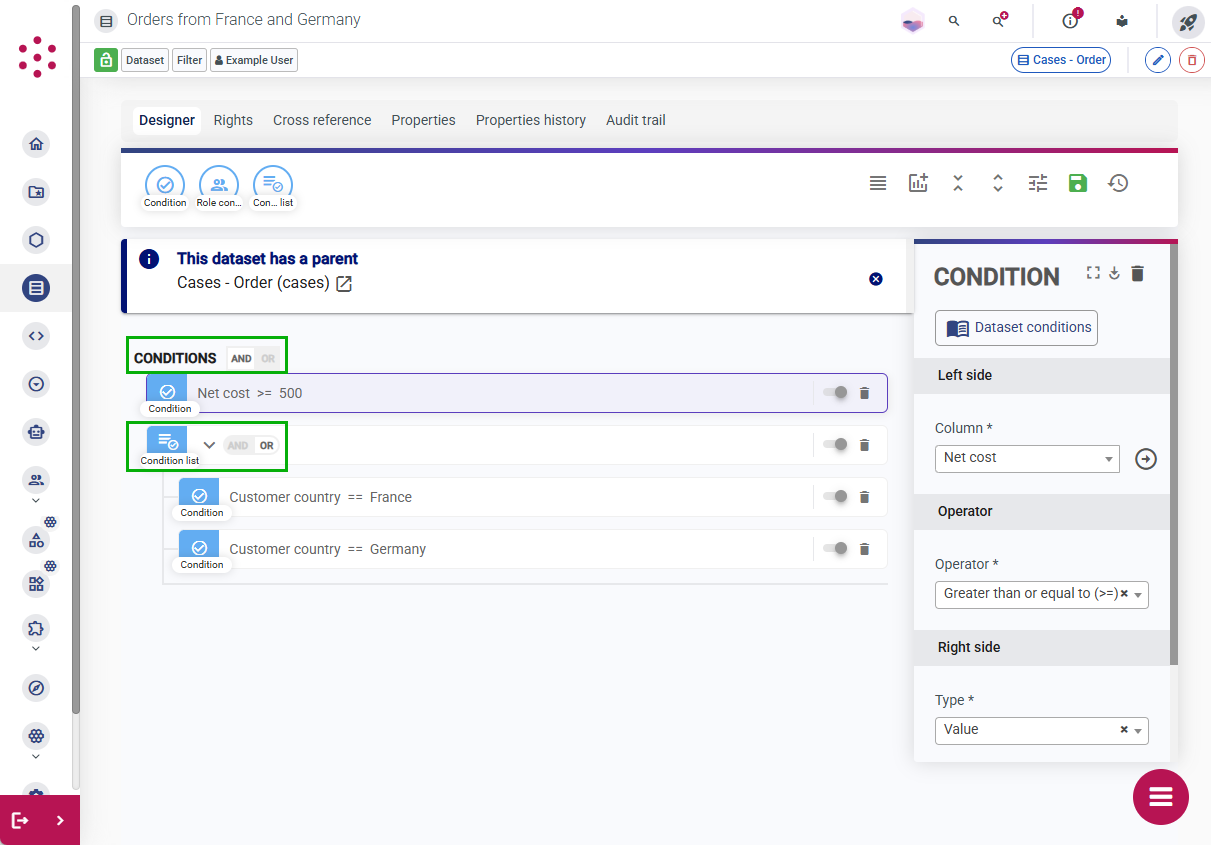
You can create more complex filters by grouping conditions in condition lists. For example, you might want to include only Customer cases where the Country attribute is Germany or France and where the most recent order value is 500 euros or more. You can achieve this by grouping the two country conditions in a condition list set to Or and then applying the list and value condition with an And.
For more information about using conditions and the available operators, see Operators and conditions.