Join datasets together
Sometimes you may want to combine data from two different datasets into the same rows. For example, you might want to create a dataset that returns details of Order cases together with some data from the associated Customer case, such as the customer's name and delivery details. If you have stored the Customer case ID in an attribute on the Order case, you can use either an inline template column or a "join" dataset to include data from the Customer case in the row for the relevant Order case.
While an inline template column is ideal if you simply want to retrieve attribute values or metadata from a related case, a join dataset allows you to achieve more complex use cases. You can use a join dataset to:
- Filter the rows that are included depending on whether there are values in one or both parent datasets. For example, if you want a dataset to return only
Quotecases with an associatedOrdercase, you can use aninner joindataset. - Filter, aggregate, or perform other functions on one or both parent datasets before combining them.
- Link from the related case to a further related case.
While you could achieve some of these use cases with an inline template, using a join dataset typically provides better performance.
Types of join
A join dataset always combines data from two parent datasets, referred to as the "left" and "right" datasets. You can use any type of dataset as a parent dataset, including filter, aggregate, and existing join datasets.
Currently two types of join are supported:
- Inner join: Returns rows where there is a corresponding record in both parent datasets. For example, if you only want to include
Usercases with a login event from the last seven days, you could use an inner join between theAll Usersdataset and filtered dataset of usage logs. - Left join: Returns all rows from the left dataset and combines them with any matching rows from the right dataset. For example, if you want to list all
Usercases with their most recent login date, but you also want to include any users that have never logged in, you could use a left join between theAll usersdataset (on the left) and a dataset of usage logs (on the right). Although there would be no rows in the usage logs for users that have never logged in, those users would still be included in the joined dataset.
Configure a join dataset
To create a join dataset, add a new dataset as normal and set the Type to Join. Specify the join type (as above) and select the parent datasets. Once you have created the dataset, the dataset designer is displayed.
Select columns from the parent datasets to specify the data that is included in the joined dataset. If you do not select any columns, the dataset will be empty.
Add a join condition to identify the value that will be used to match a row from the left dataset with a row in the right dataset. For example, if you're combining a dataset of Order cases with a dataset of Customer cases and you want to match rows using the Customer case ID, use the Left dataset column to select the Customer ID attribute column from the Order dataset, and the Right dataset column to select the case ID metadata column from the Customer dataset. By default, a join condition uses the is equal operator. You can select other operators as required.
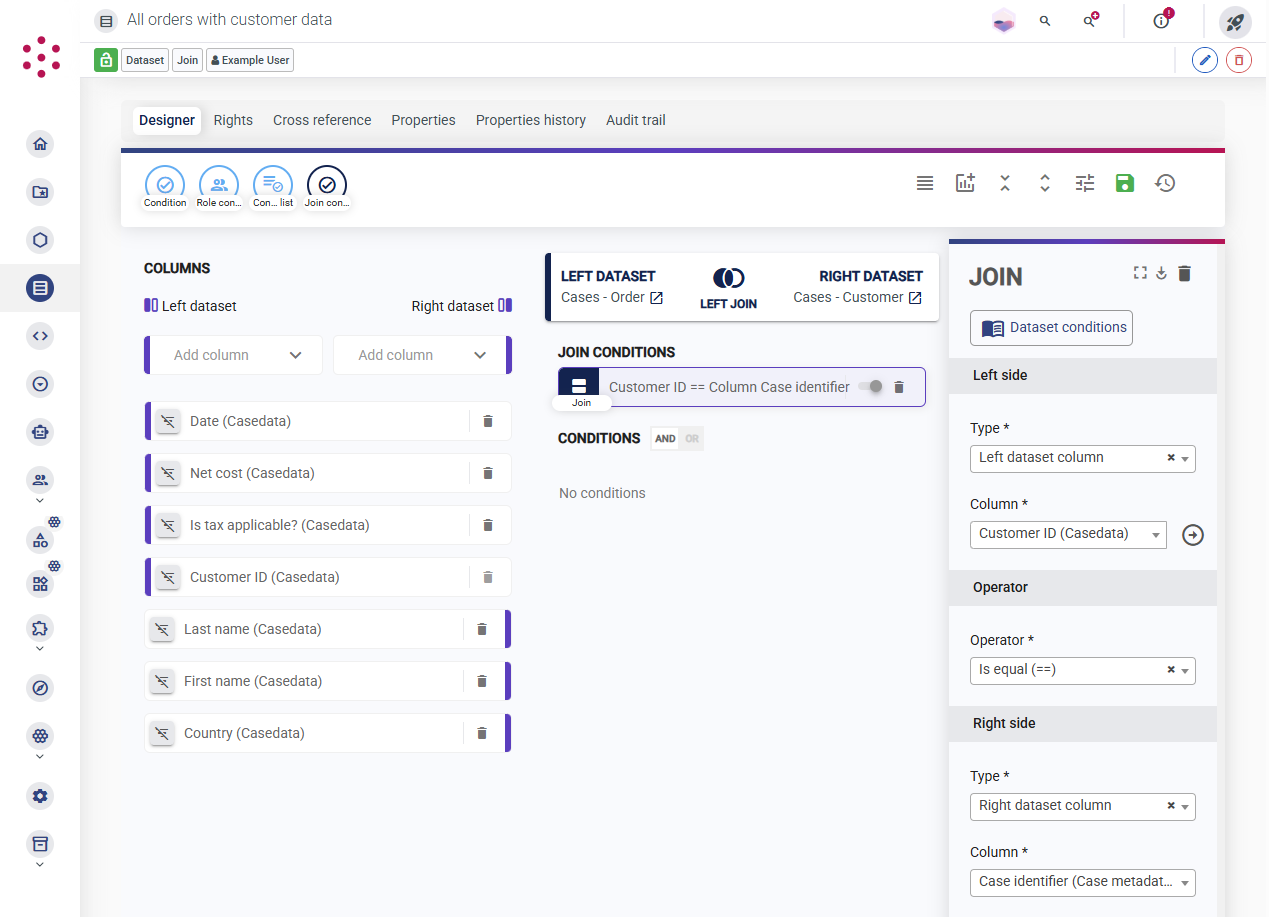
You can add conditions to filter the data that is included in the joined dataset. These conditions are applied to the data that is returned by joining the two datasets. If you have applied filters to the parent datasets, these are applied first and control the data that is available to join. For more information about adding conditions, see Filter datasets with conditions.