AI conversation widget
An AI conversation widget displays the messages exchanged with an AI agent. You can use an AI conversation widget to provide users with a chatbot. Depending on the agent and widget settings, users can ask the AI agent to perform activities, extract information from uploaded files, access case data, and search the internet. You can make a chatbot available from a particular page (such as the homepage) or embed it in a navigation bar so that it remains available to users wherever they are in your application.
You can also use an AI conversation widget to display the messages from an AI conversation case created by an agent activity. For example, you might perform an agent activity each time a new support ticket case is created so you can use AI to triage the issue and suggest solutions. You can display the requests sent to the AI agent and the agent's responses in the AI conversation widget so that users can see the message history and send further requests as required.
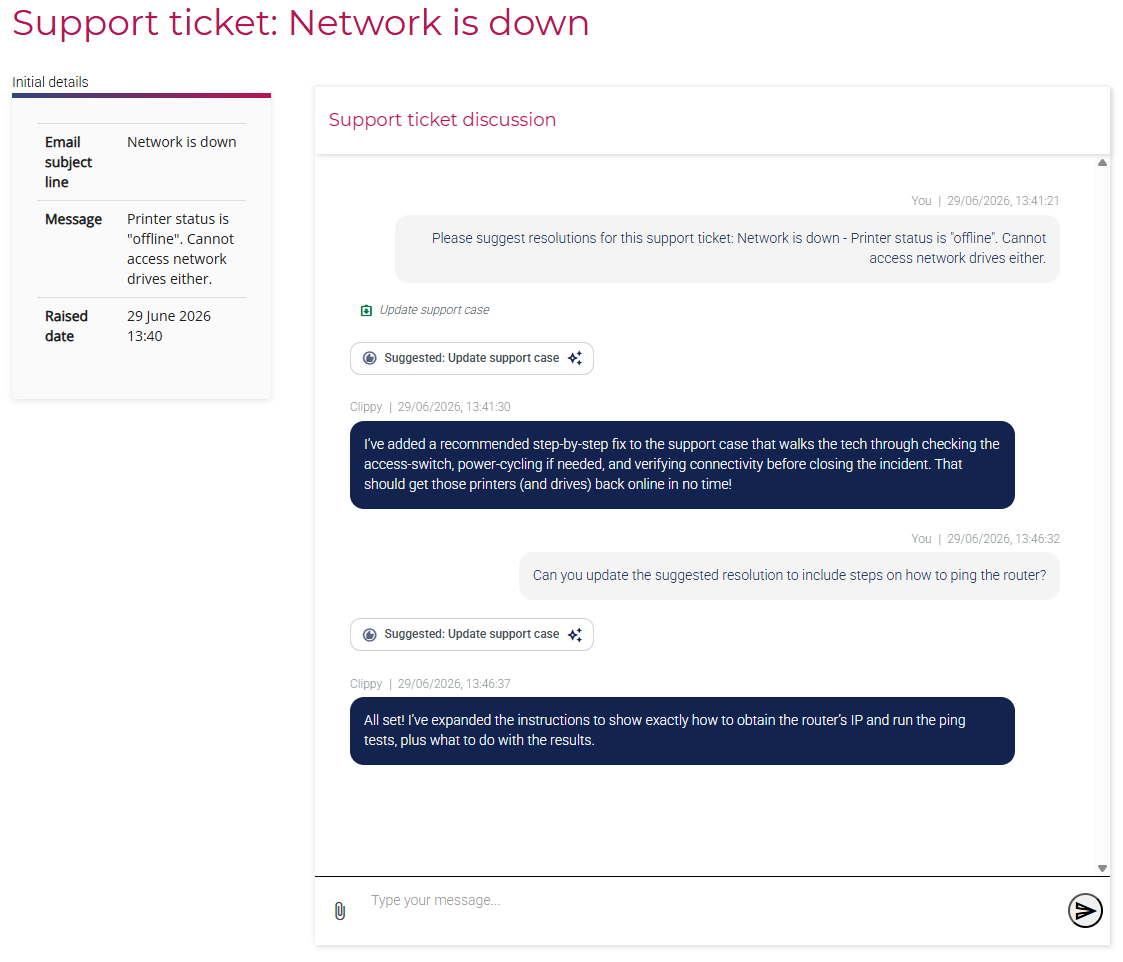
Before configuring an AI conversation widget, you must create an AI agent and specify the LLM you want to use. Then, select the relevant AI agent from the Agent picklist.
Configure the remaining widget settings as required:
- Execution type: You can grant AI agents rights to perform activities autonomously or with oversight by a user. When a user asks the agent to perform an activity (for which it has been granted rights) from the widget, specify the behavior:
- Agent rights: Apply the rights granted to the agent. If the agent has
Suggestrights, it will populate the activity form with suggested values but it will not submit the form. If the agent has fullExecuteorRequestrights, it will perform the activity autonomously. - User rights - Always show form: The agent can only populate the activity form with suggested values (even if it has full
ExecuteorRequestrights). A user (with appropriate rights) must open the form in order to submit the activity. This is useful if you want to ensure users always have to review activities when they are initiated from a conversation with an agent. - User rights - Auto-submit: The agent can submit the activity on the user's behalf, even if the agent has only been granted
Suggestrights. The user must also have rights to perform the activity.
- Agent rights: Apply the rights granted to the agent. If the agent has
- First message: Optionally specify an opening message from the AI agent to the user. Use template functions to include information from the current case and details such as the current user's display name.
Note that when using the widget to display the AI conversation from an agent activity, this message is overridden by the task ininputvalue (if specified). - Chat title: Optional heading displayed at the top of the chat pane.
- Primary color: Background color for responses generated by the AI agent.
- Secondary color: Background color for user inputs to the chat.
- Agent conversation: Optional. The ID of an existing
AI conversation case. Use this to display a specific conversation created via an agent activity. Leave this field blank to create a new conversation for each new user that interacts with the AI agent. - Custom activities enabled: Restrict the activities that the AI agent can perform by including or excluding those listed. Only activities on the current casetype are available to include or exclude.
- Allow file uploads: Give users the option to upload files so that the AI agent can review the contents. Files are stored on the AI conversation case and remain available to the agent throughout the conversation.
For more information about adding a chatbot, including how to embed a chatbot in a navigation bar, see Add an AI chatbot.
For more information about using an agent activity to initiate a conversation with an AI agent in relation to a particular case (such as a support ticket or complaint), see Configure an agent activity.
When a user interacts with an AI agent, all user inputs are shared with the provider of the LLM.